
Want to turn your next virtual meeting into a global event?
With Konn3ct, you can livestream your conferences, webinars, or town halls directly to YouTube and other platforms in just a few clicks. No tech team needed.
Here’s your complete, step-by-step guide to streaming your Konn3ct sessions to YouTube.
What You Need Before You Start
To use this feature, make sure:
-
Your Konn3ct account includes the Streaming Services Add-on
👉 Click here to get the add-on - Your YouTube channel is verified and ready to go live
🎬 How to Stream from Konn3ct to YouTube in 10 Easy Steps
Step 1: Sign In to Your Konn3ct Dashboard
Head over to https://konn3ct.com and log in with your account credentials.
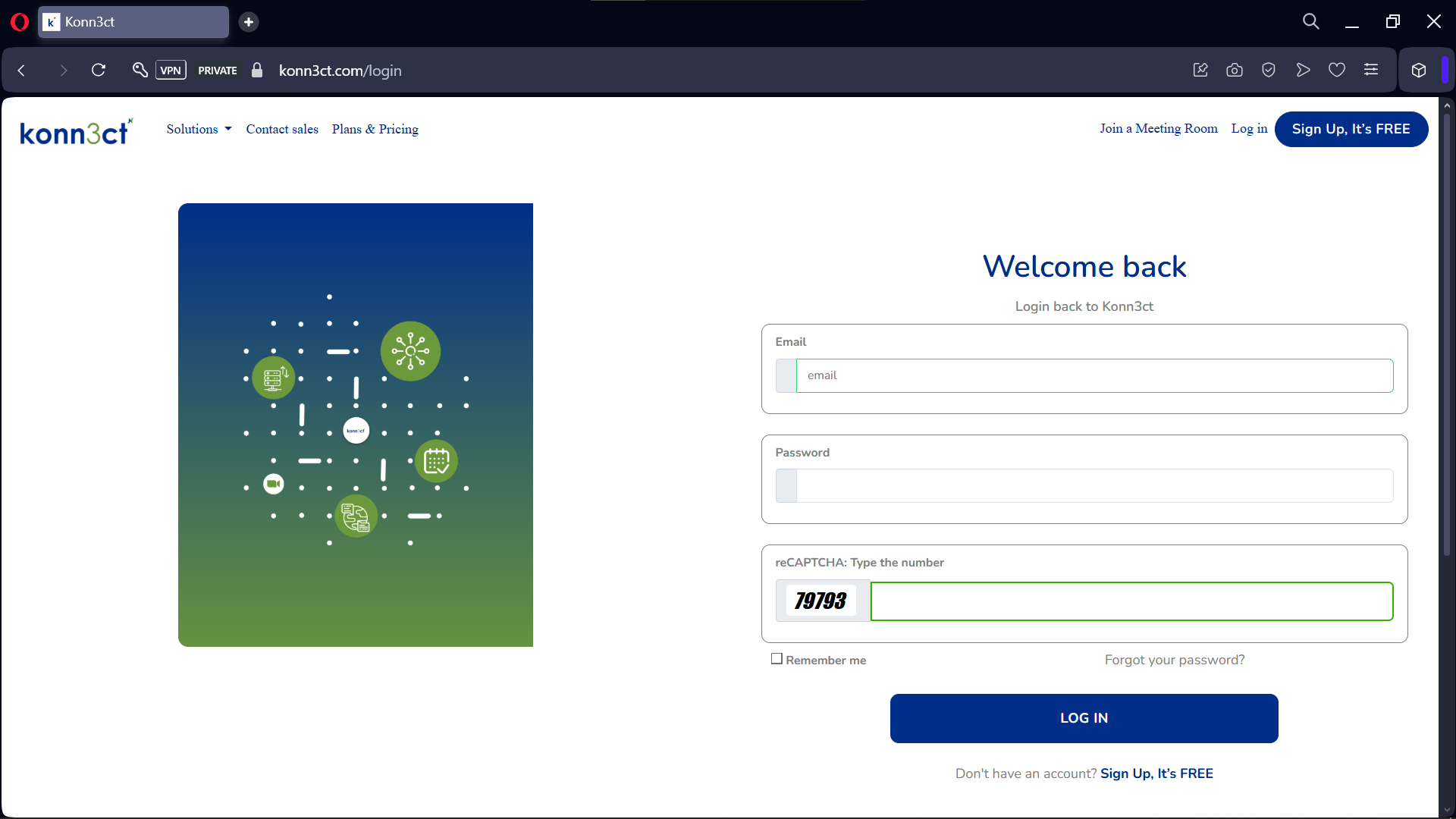 Start by signing in to your dashboard.
Step 2: Go to the "Meeting Rooms" Section
From your dashboard, click on the Meeting Rooms tab to see your available virtual spaces.
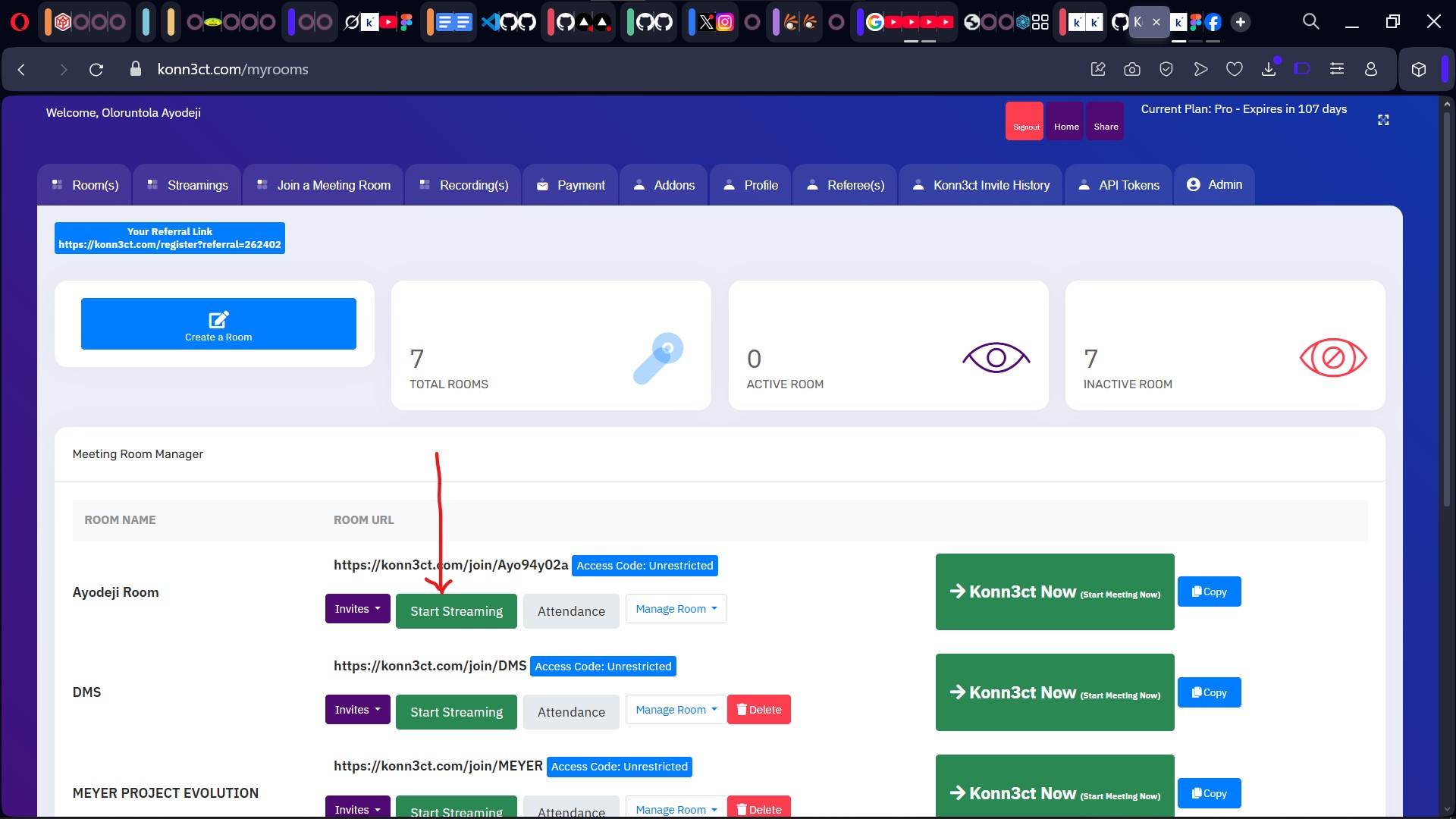 Access your virtual meeting spaces.
Step 3: Click on “Start Streaming”
Find the room you want to stream and click Start Streaming. A pop-up will appear asking for the platform and streaming key.
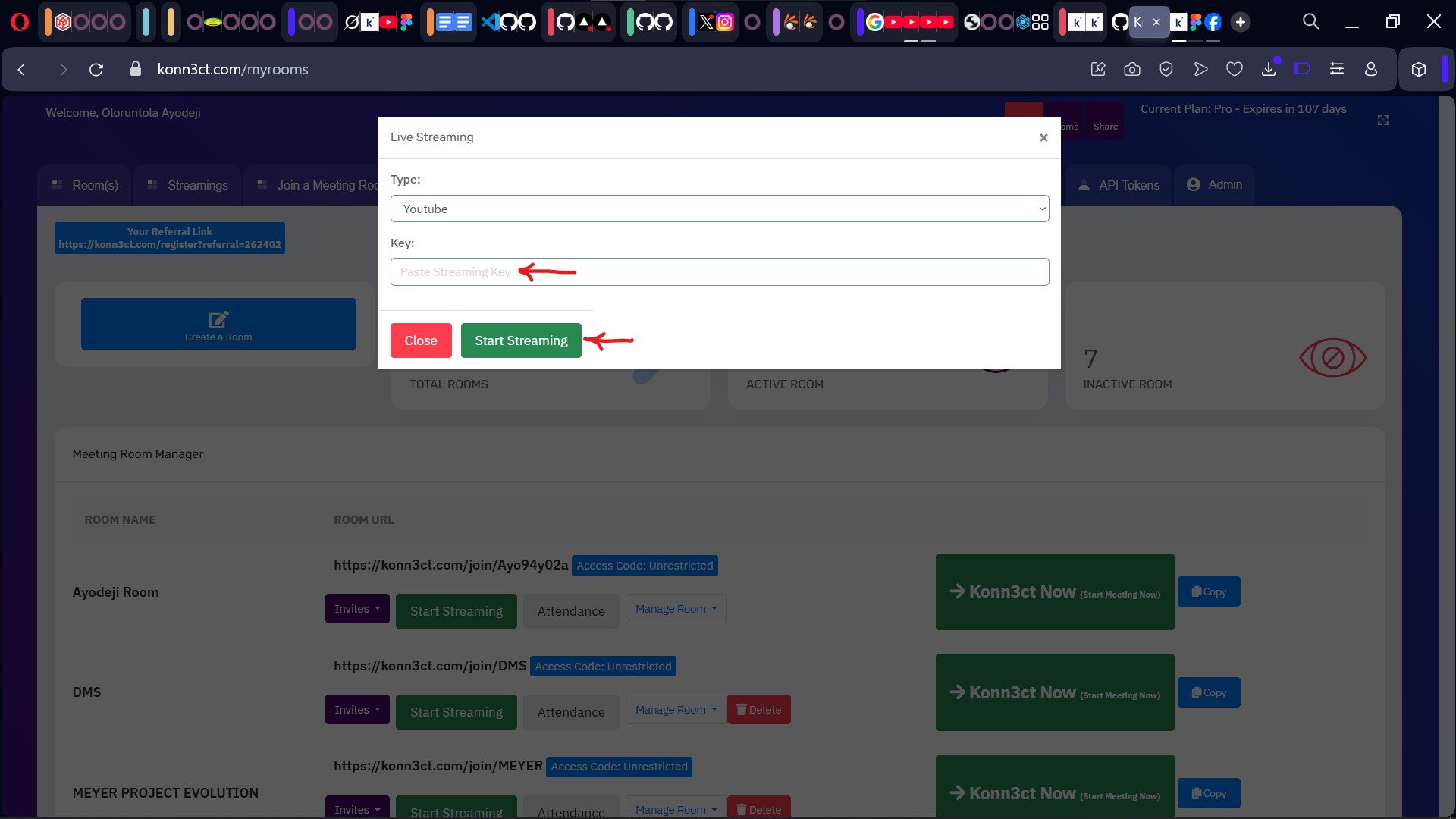 Launch the streaming integration panel.
Step 4: Head Over to YouTube → Click “Create” → “Go Live”
Log in to YouTube Studio, click the Create button at the top right, and choose Go Live.
⚠️ Make sure your YouTube account is verified to stream.
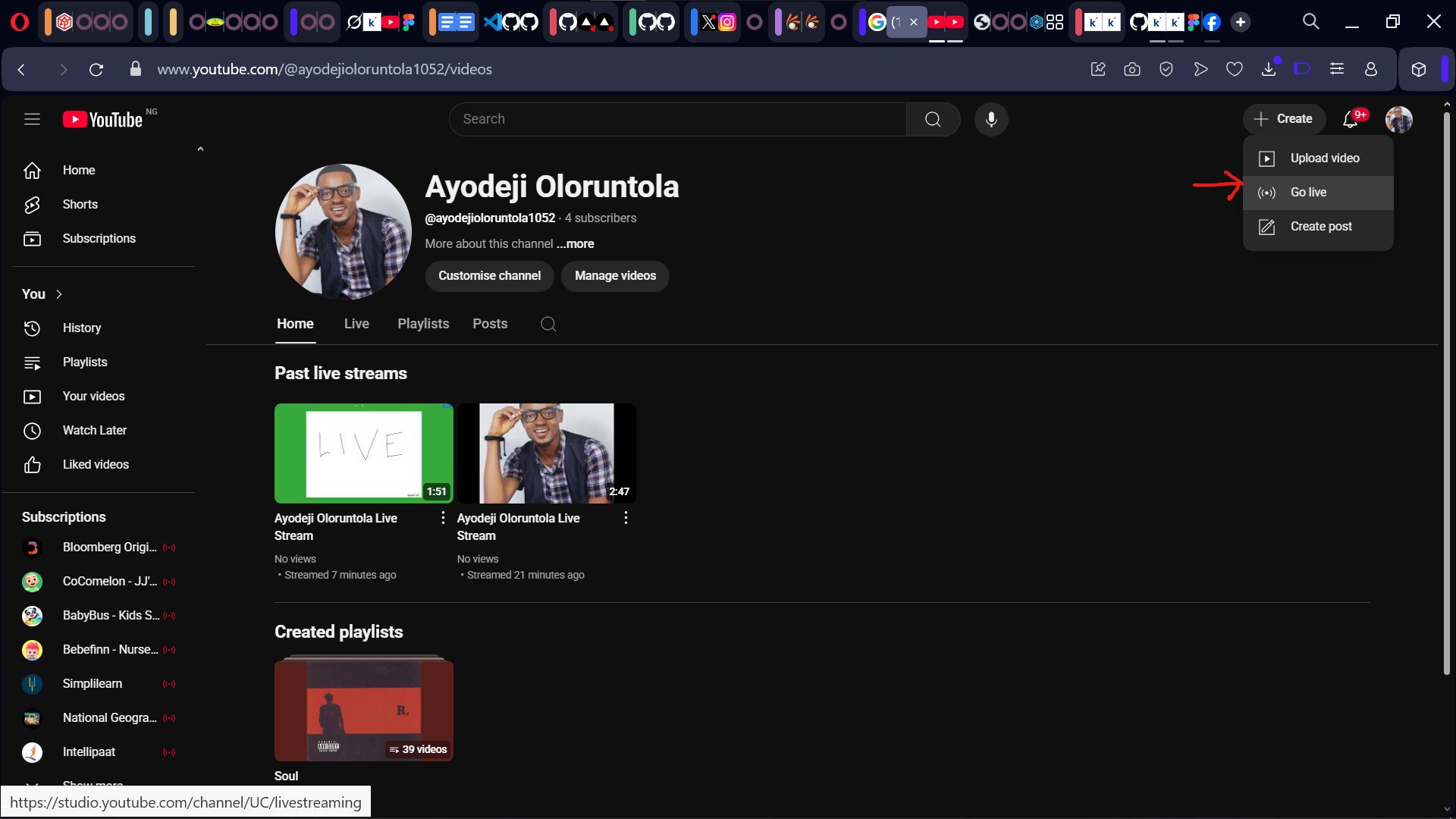 Go live from your YouTube dashboard.
Step 5: Choose "Streaming Software" as Your Input
Under “How do you want to stream?”, select Streaming software (this enables you to use external tools like Konn3ct).
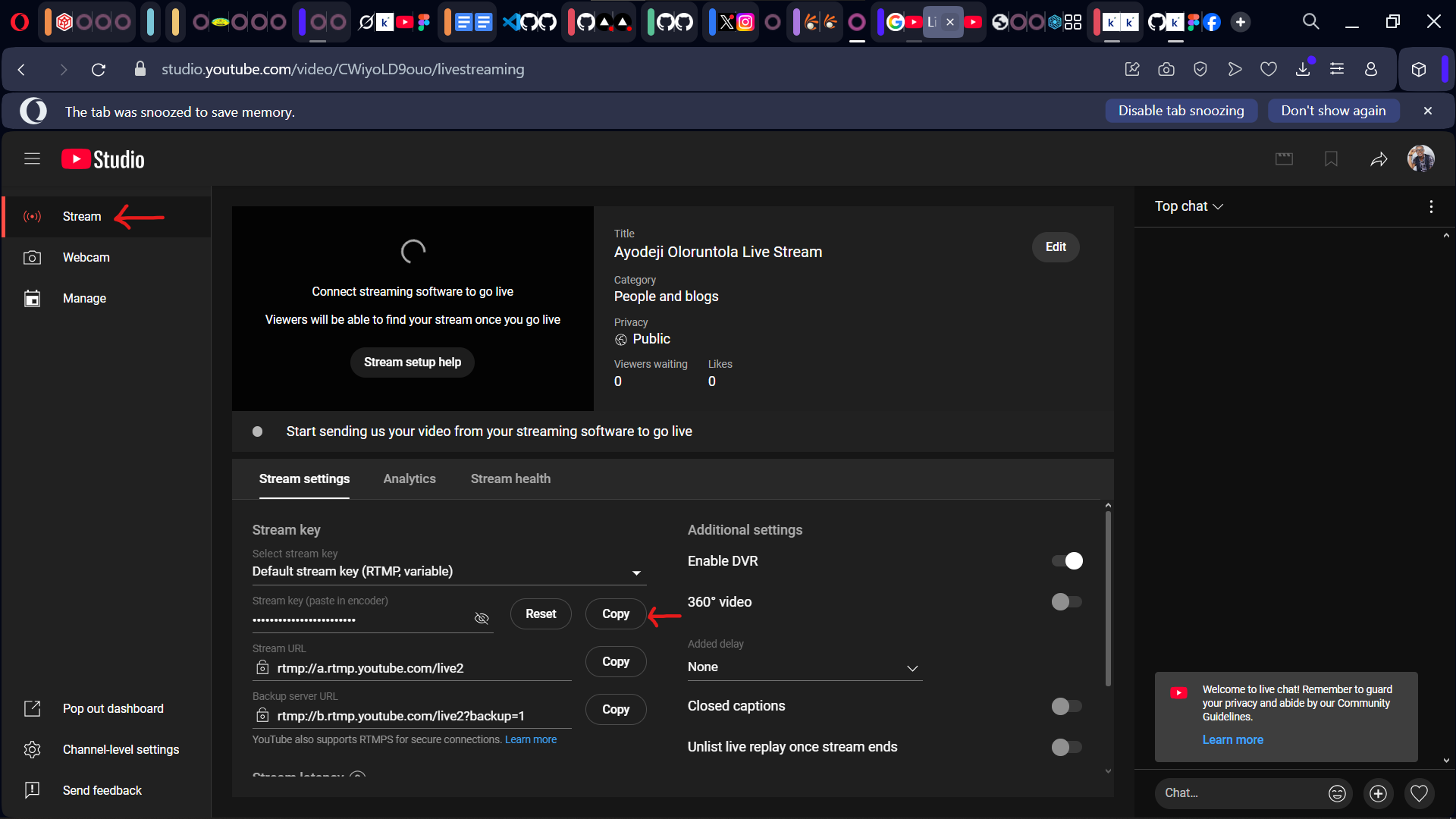 Select “Streaming software” as your broadcast method.
Step 6: Copy Your Stream Key
YouTube will display a Stream Key. Copy it carefully—you’ll need it for Konn3ct.
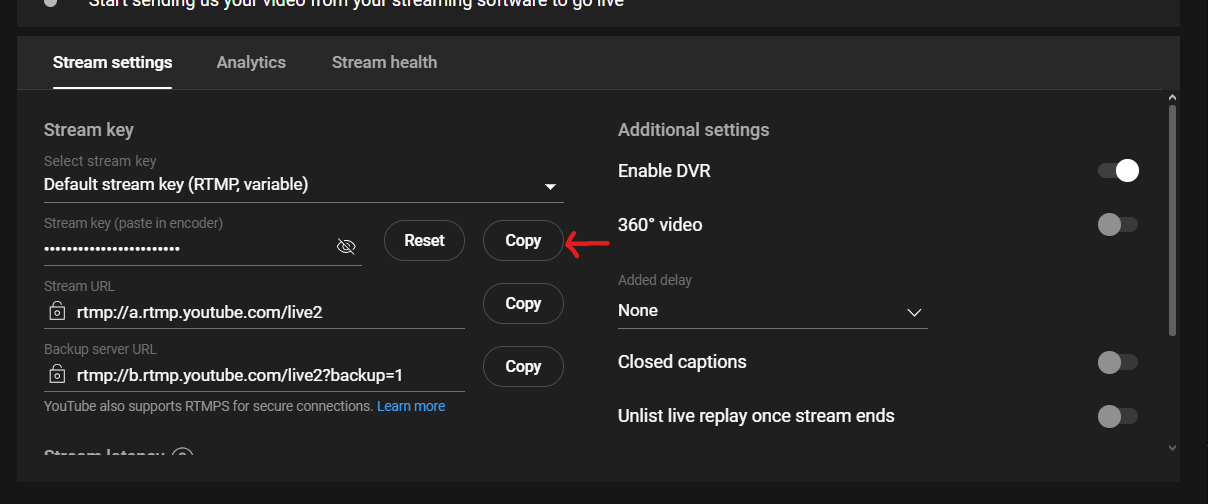 This is the code that links Konn3ct to YouTube.
Step 7: Paste the Stream Key in Konn3ct
Return to Konn3ct, paste the copied stream key into the dialog box, and select YouTube as your platform.
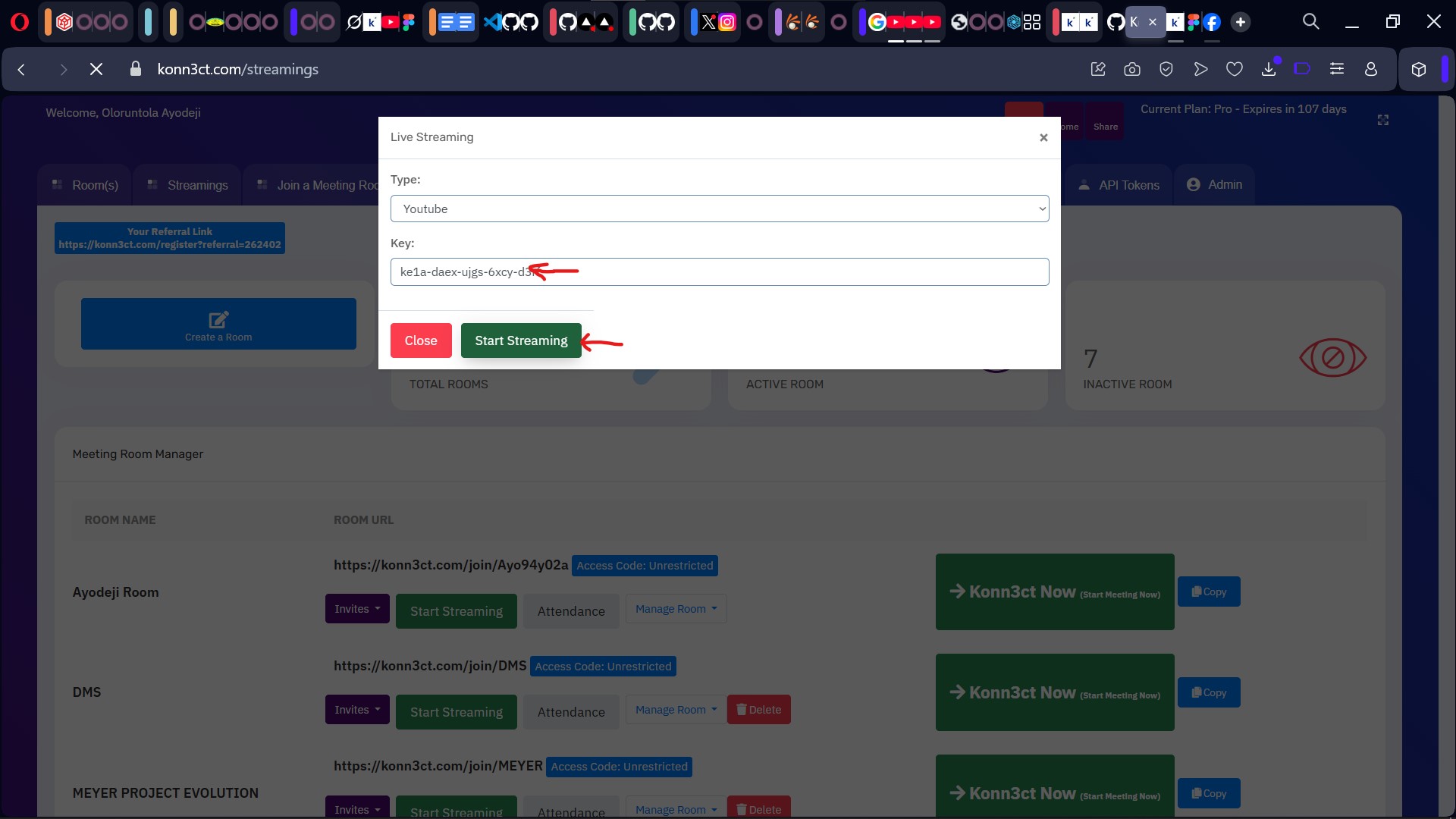 Enter your streaming details in Konn3ct.
Step 8: Start Your Meeting Room
Click Konn3ct Now to launch the virtual meeting room. You’re now live and ready to go!
 Enter your room and start engaging your audience.
Step 9: Confirm You're Live on YouTube
Open your YouTube Live control room to confirm your session is streaming.
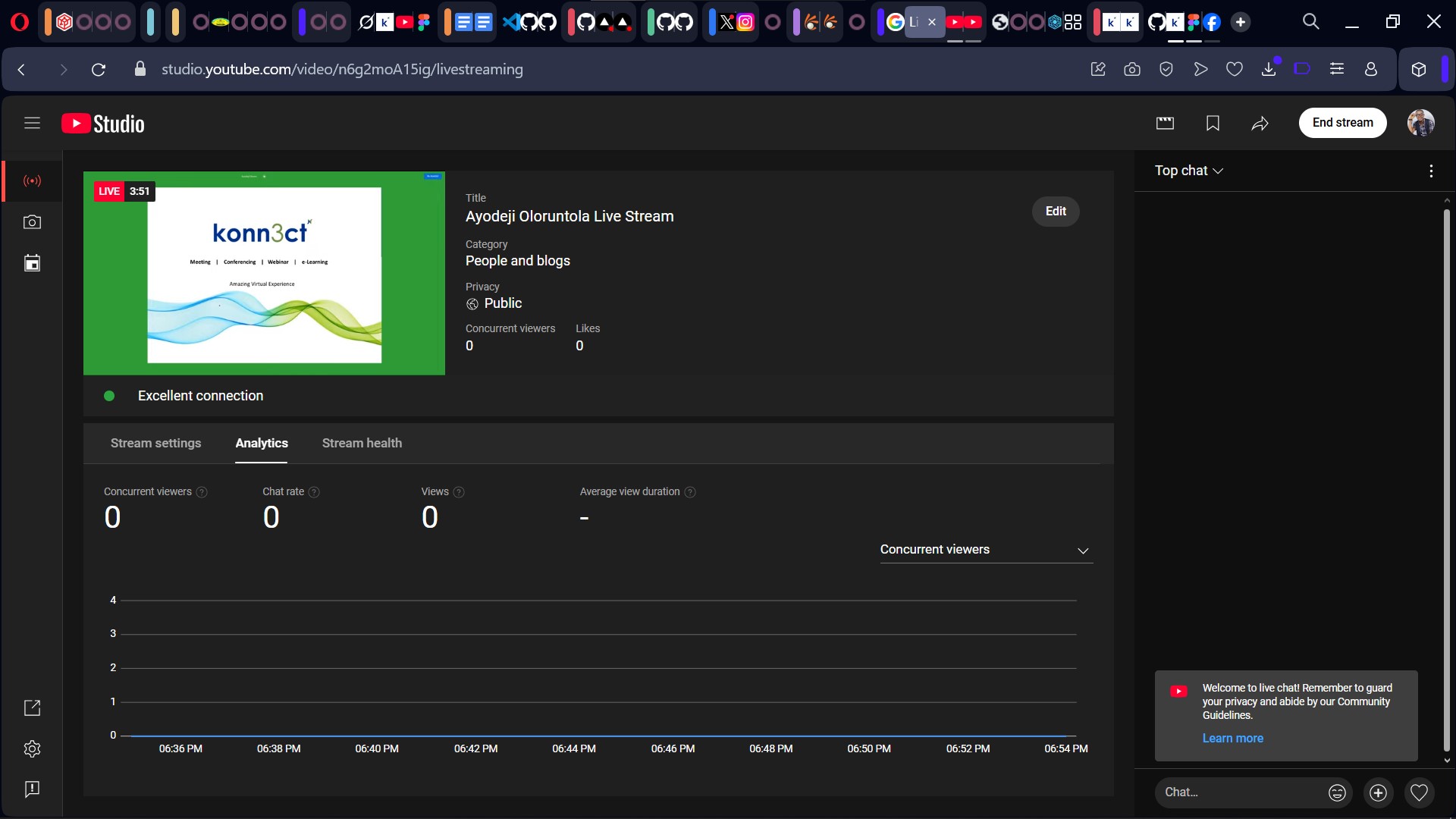
Confirm your stream is live on your YouTube channel.
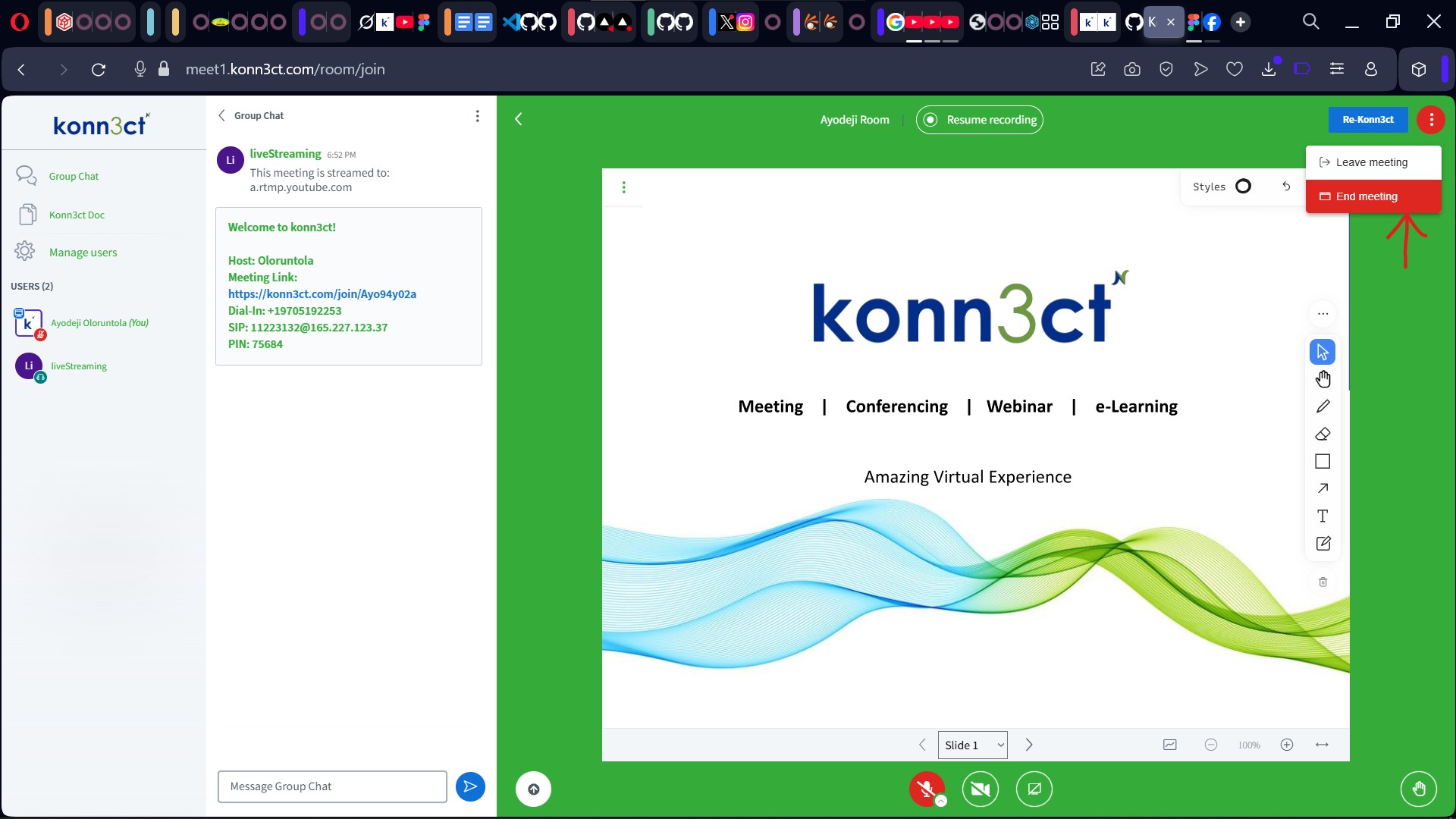
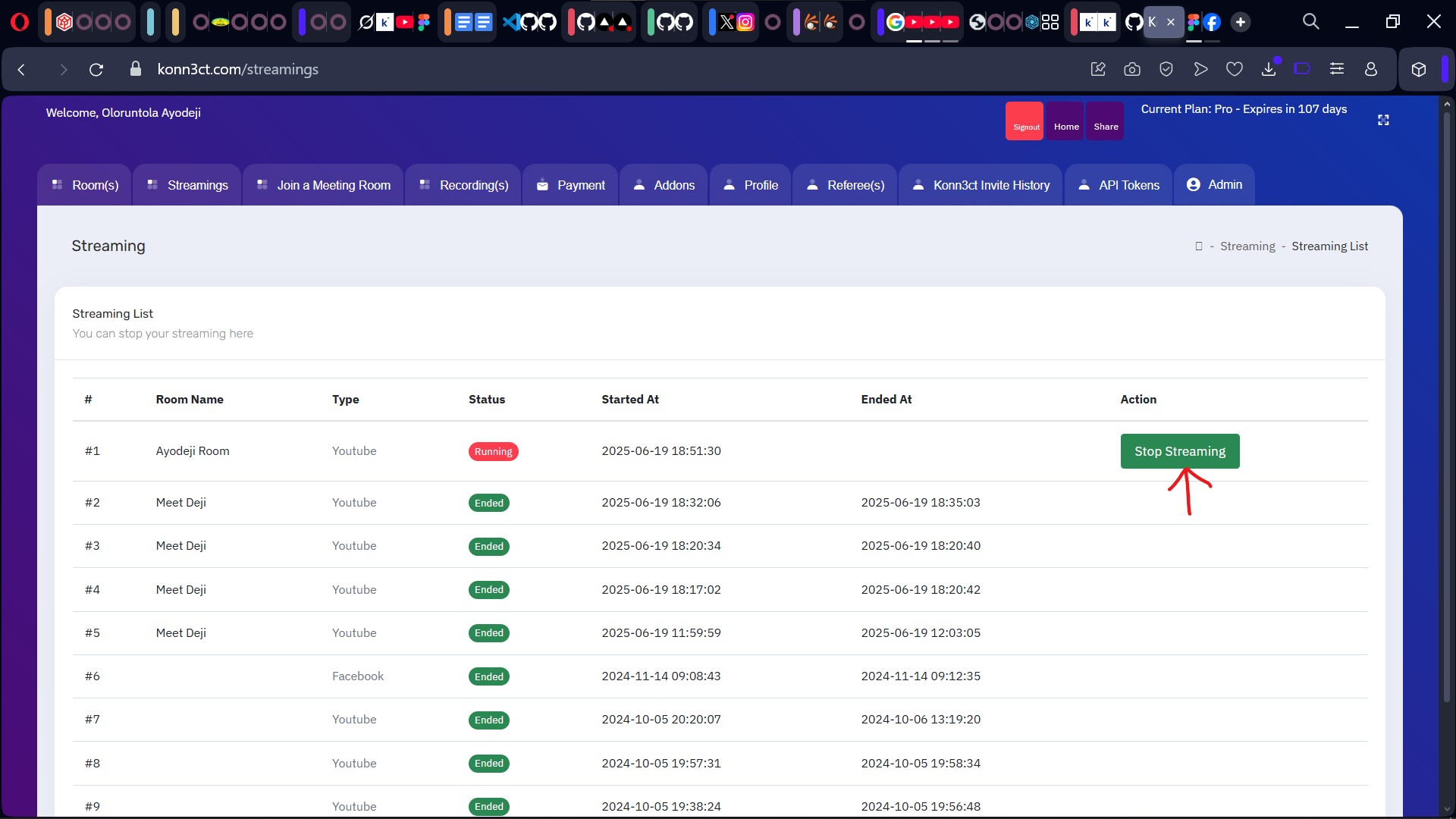
Step 10: End the Stream Properly
When your meeting ends:
-
Close the meeting in Konn3ct
- Go back to your dashboard and click Stop Streaming
-
End the session from YouTube Studio
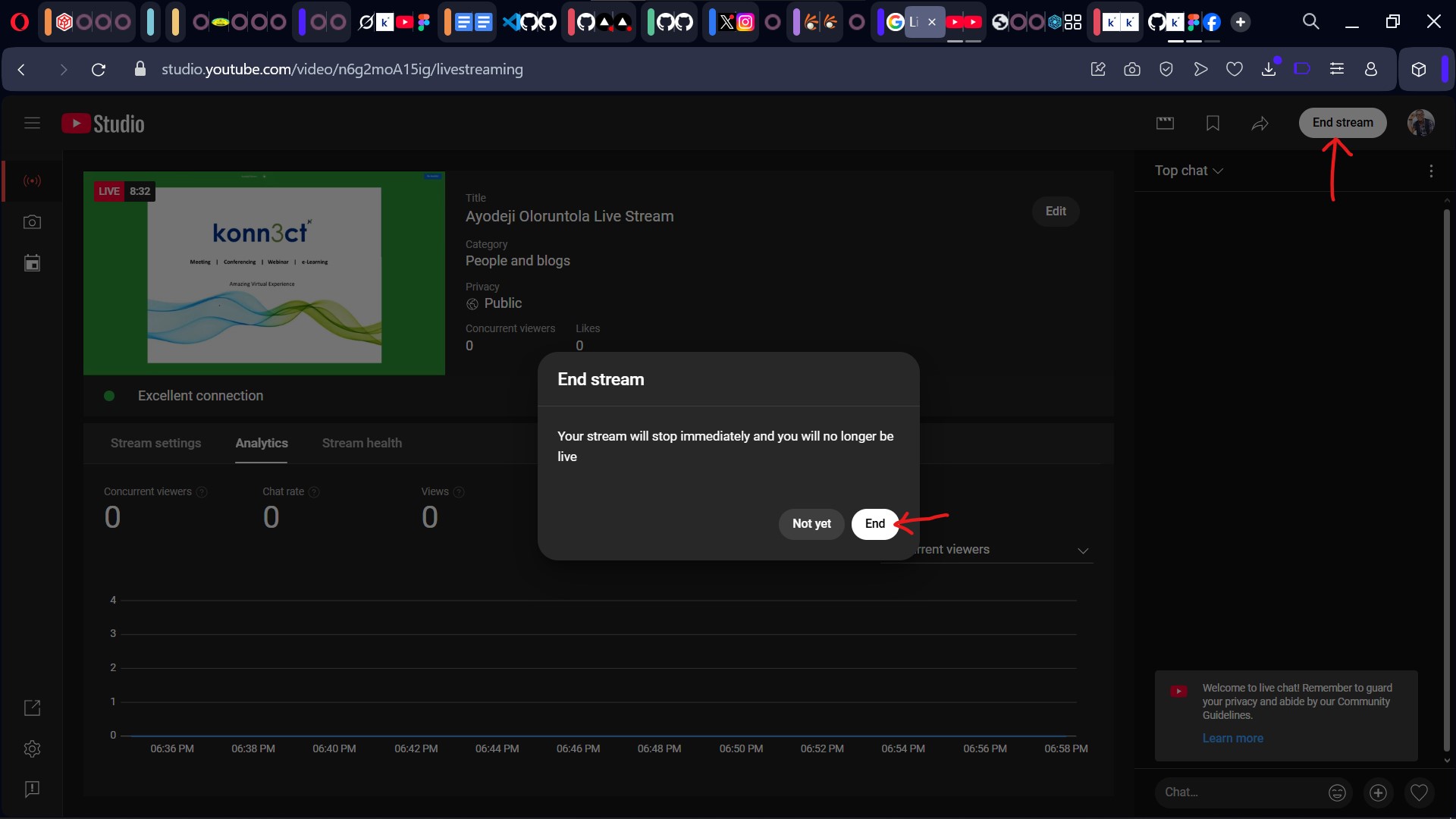
Don’t forget to stop the stream from both platforms.
Pro Tips to Maximize Your Livestream
- Use a compelling title and thumbnail on YouTube to attract viewers
- Promote your stream on social media with a countdown or teaser (You can use the pre-registration feature on konn3ct)
- Consider cross-streaming to Facebook for wider reach
- Check your internet connection before going live (wired > Wi-Fi)
Who Should Use This?
✅ Churches broadcasting sermons
✅ Startups demoing new products
✅ NGOs hosting town halls
✅ Government ministries running public consultations
✅ Educators teaching online
Ready to Go Live?
Konn3ct makes professional streaming simple, flexible, and scalable.
Try it for free, or book a 1-on-1 demo with our onboarding team.
Need help setting up? Contact us via info@konn3ct.com